Guided demo
A day in the office, screen by screen.
These are real screenshots from a demo company on the platform (Demo HVAC — fictional customers, fictional numbers). Nothing is mocked up; where a screen says 'configuration required', that is what a new company sees until it connects its own provider.
- 13 steps
- Real product, demo data
- No sign-up needed to read
Step 1 of 13
A call comes in
Calls ring on your Twilio number. The office sees the live queue on any page; browser calling lights up once the API key pair and TwiML App are configured, and until then calls ring your desk phones or the AI receptionist.
Call center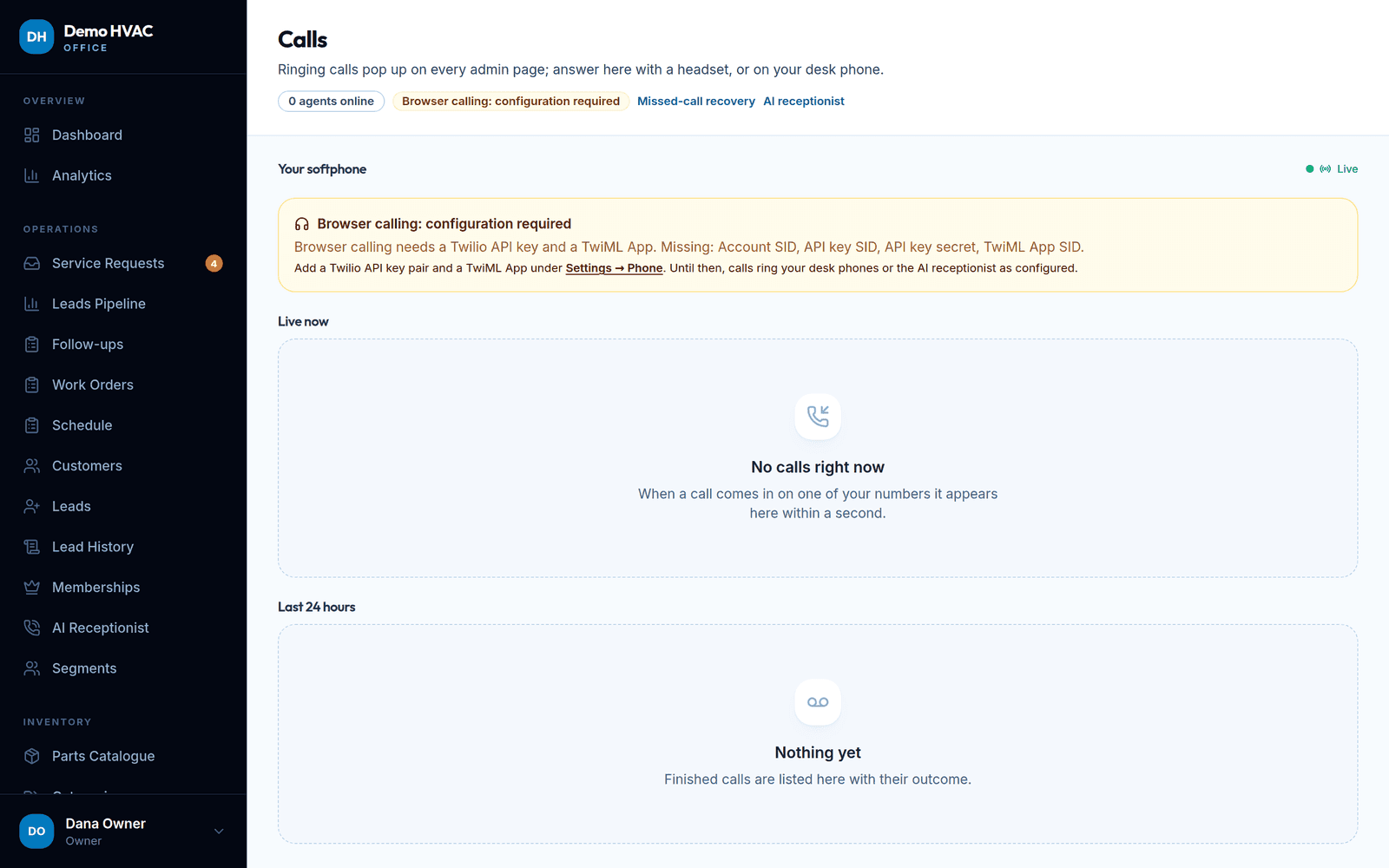
Step 2 of 13
After hours, the AI receptionist answers
The go-live checklist shows exactly what is configured. When it is green, the assistant follows your hours, knowledge base and routing rules, scores the lead and creates a service request with a transcript.
AI receptionist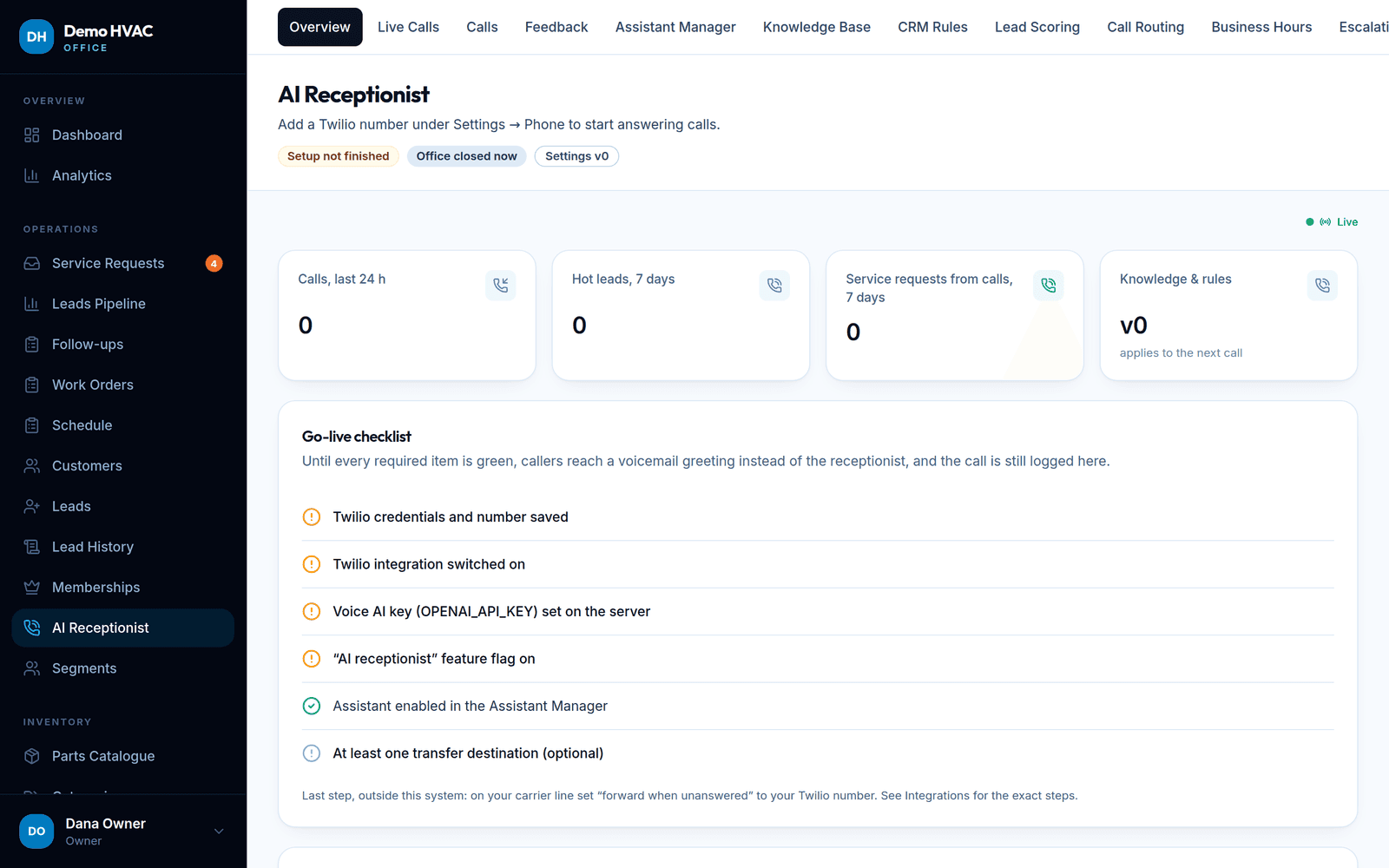
Step 3 of 13
The request lands in the inbox
What the caller or website visitor told you, their preferred time, consent and contact details. 'Create customer' turns it into a record and can invite them to the portal.
CRM & customers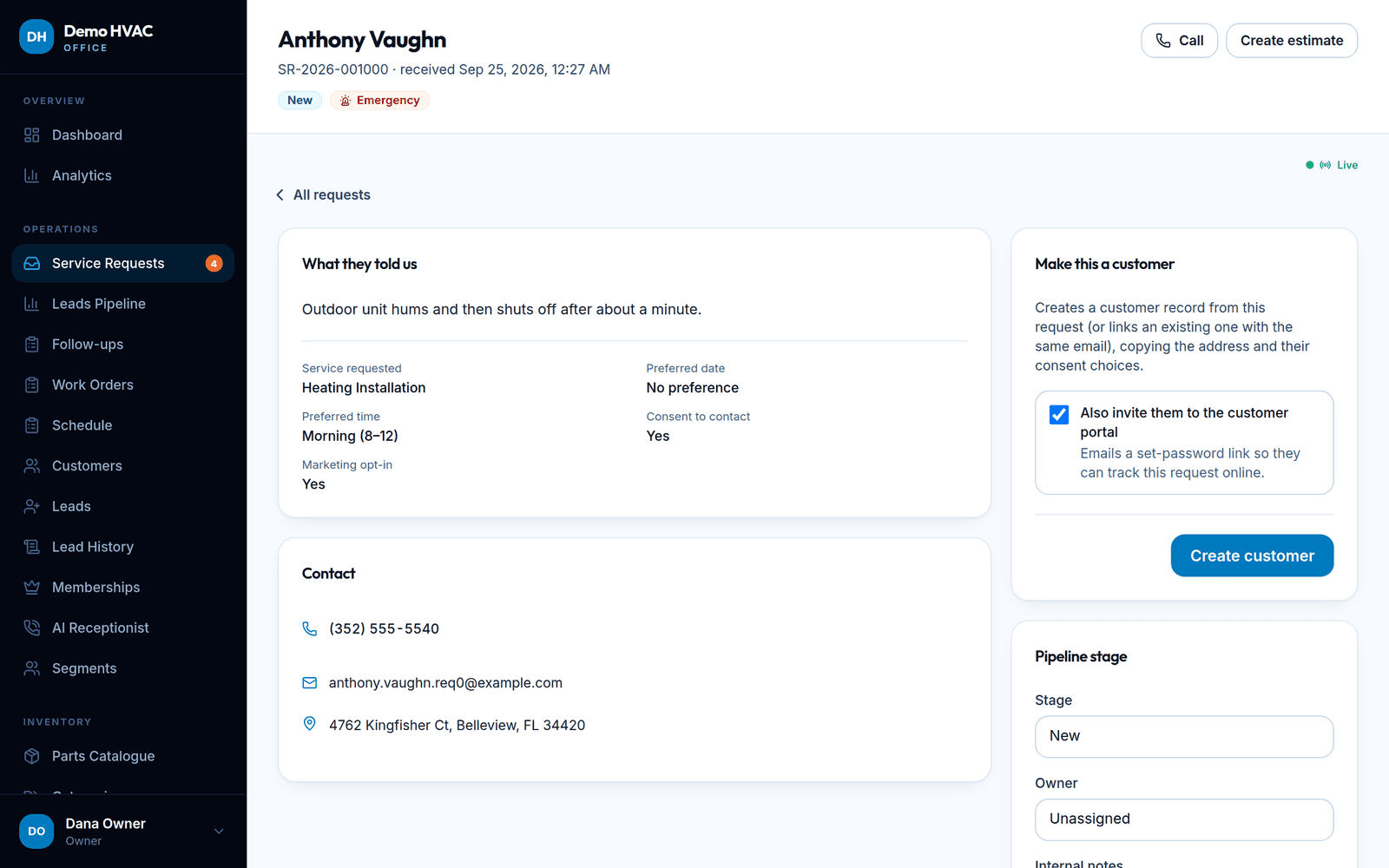
Step 4 of 13
The customer record fills in
Follow-ups, activity, service addresses, the equipment at each one and the lifecycle stage. Every later job, estimate and payment lands on this timeline.
CRM & customers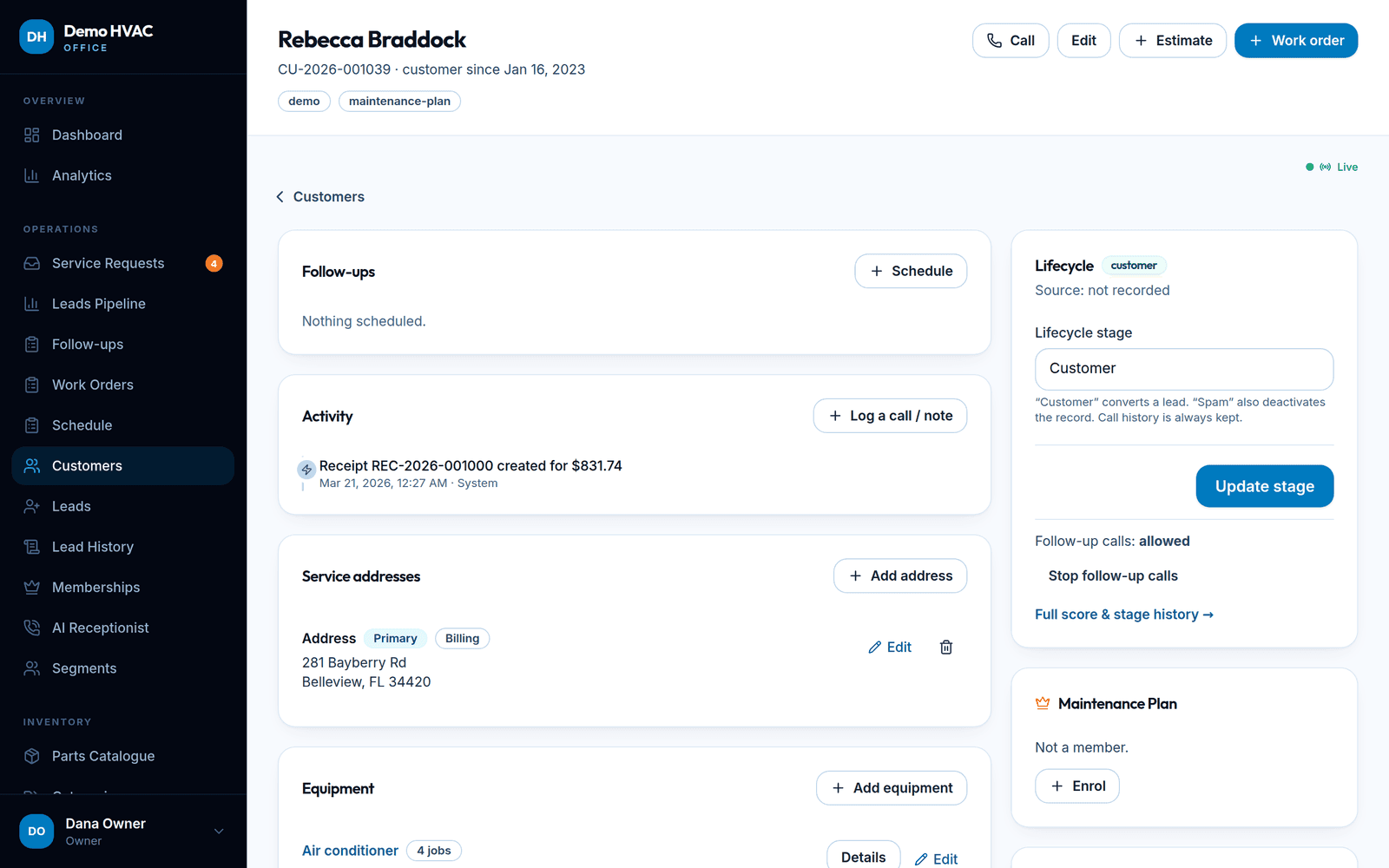
Step 5 of 13
Dispatch picks the truck
The week per technician with emergency flags and live status. Filter by a technician to see their day; new jobs are created from a request or from scratch.
Dispatch & technicians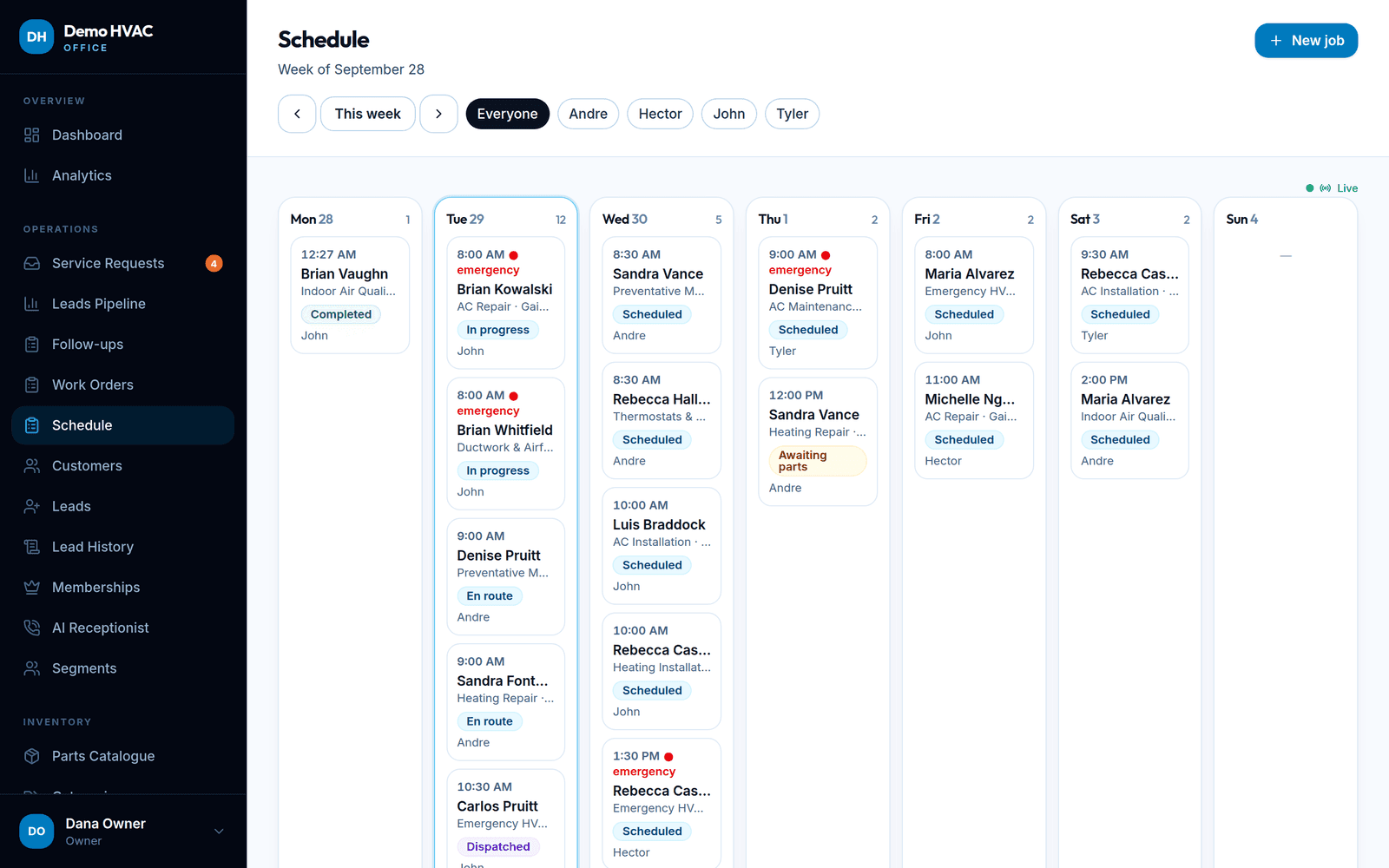
Step 6 of 13
The technician works from a phone
Today's jobs with one-tap call and directions, the customer's own description, the equipment on site with model and serial, photos, notes and the parts used from the truck.
Dispatch & technicians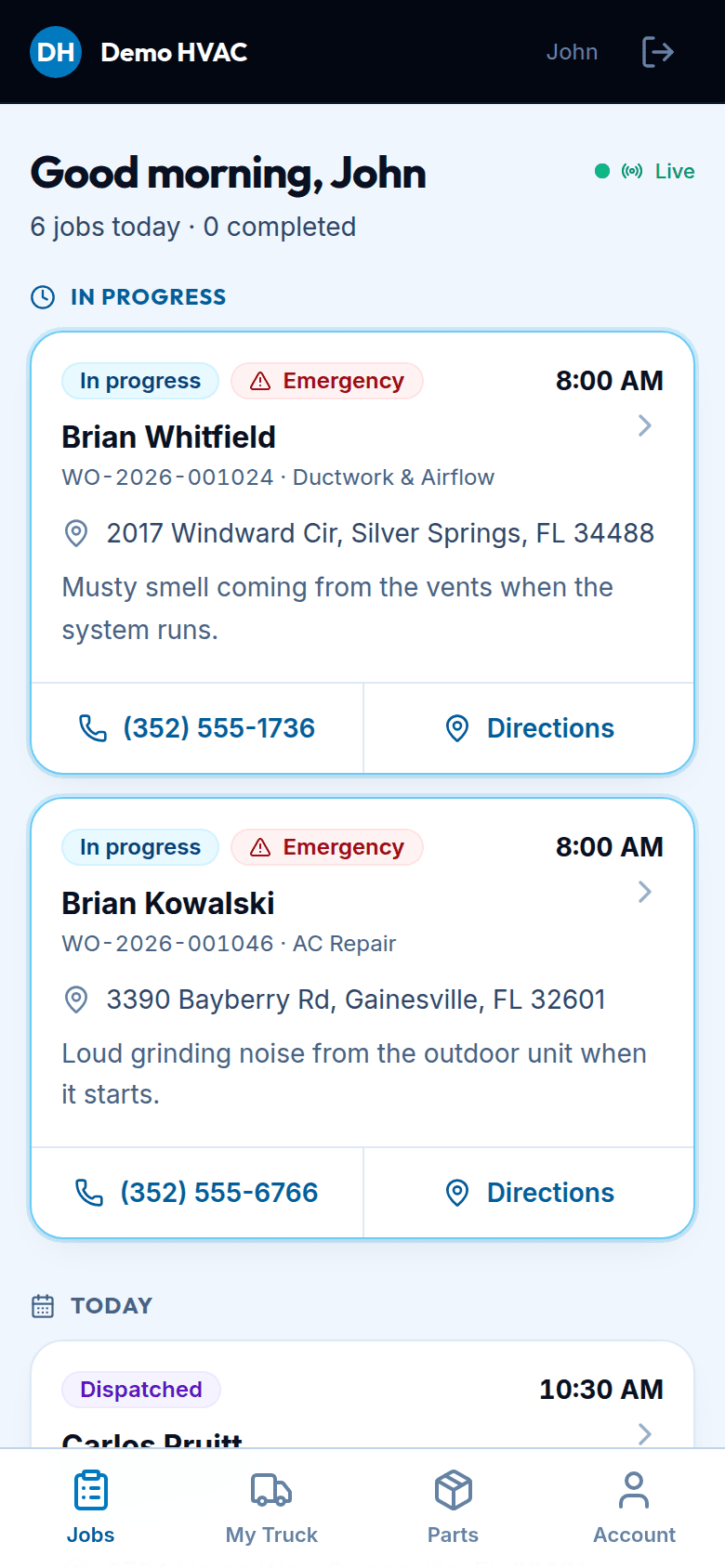
Step 7 of 13
Parts come off the truck, not the warehouse
Each truck is its own stock location with value, low and out counts. Restock requests and transfers keep them stocked; a low-stock digest goes to the office.
Inventory & trucks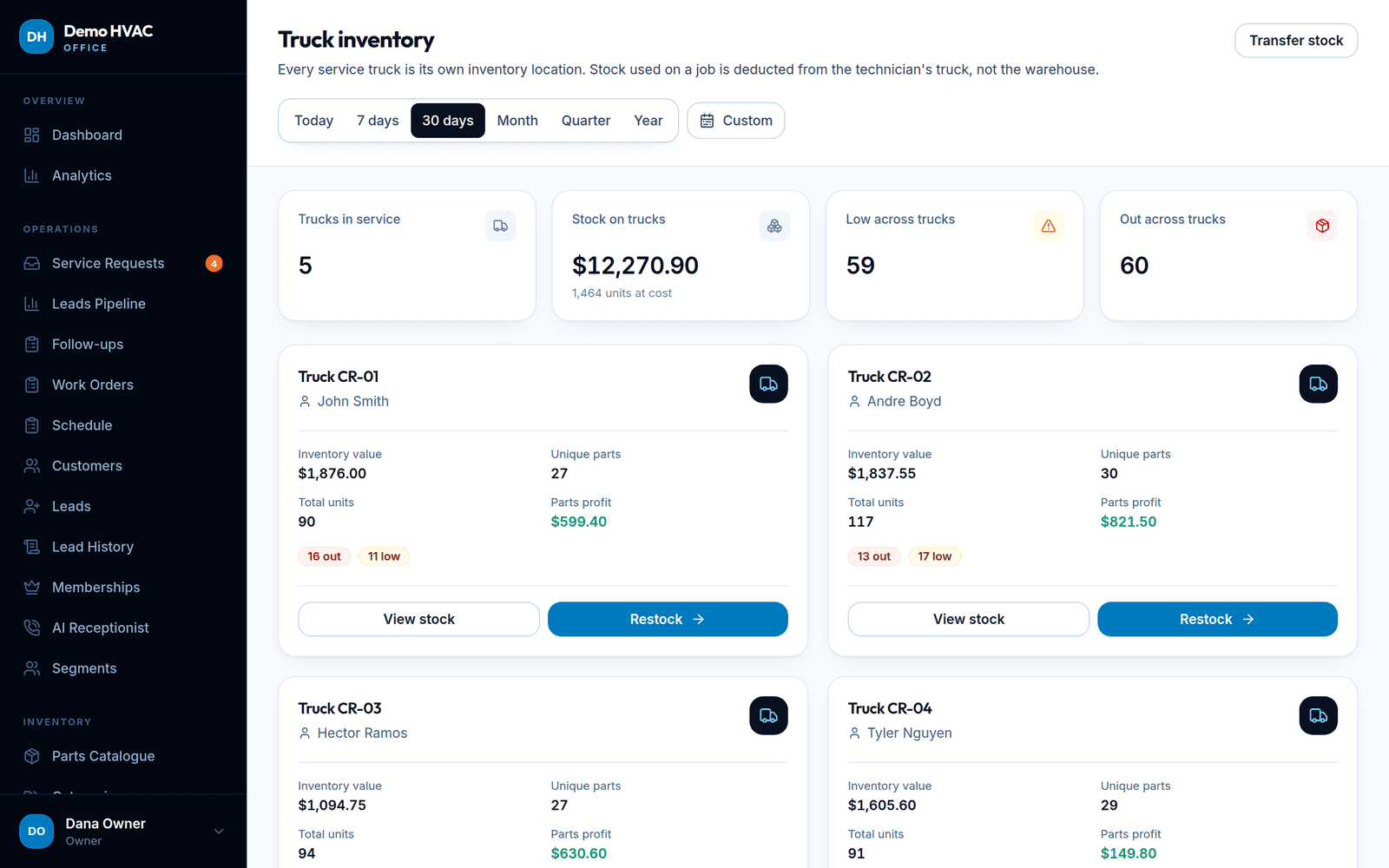
Step 8 of 13
The estimate is signed online
Line items, tax and customer-facing notes. Send a secure link, or hand the phone over to sign on the spot. Editing after sending creates a revision so the customer always approves what they saw.
Estimates, invoices & payments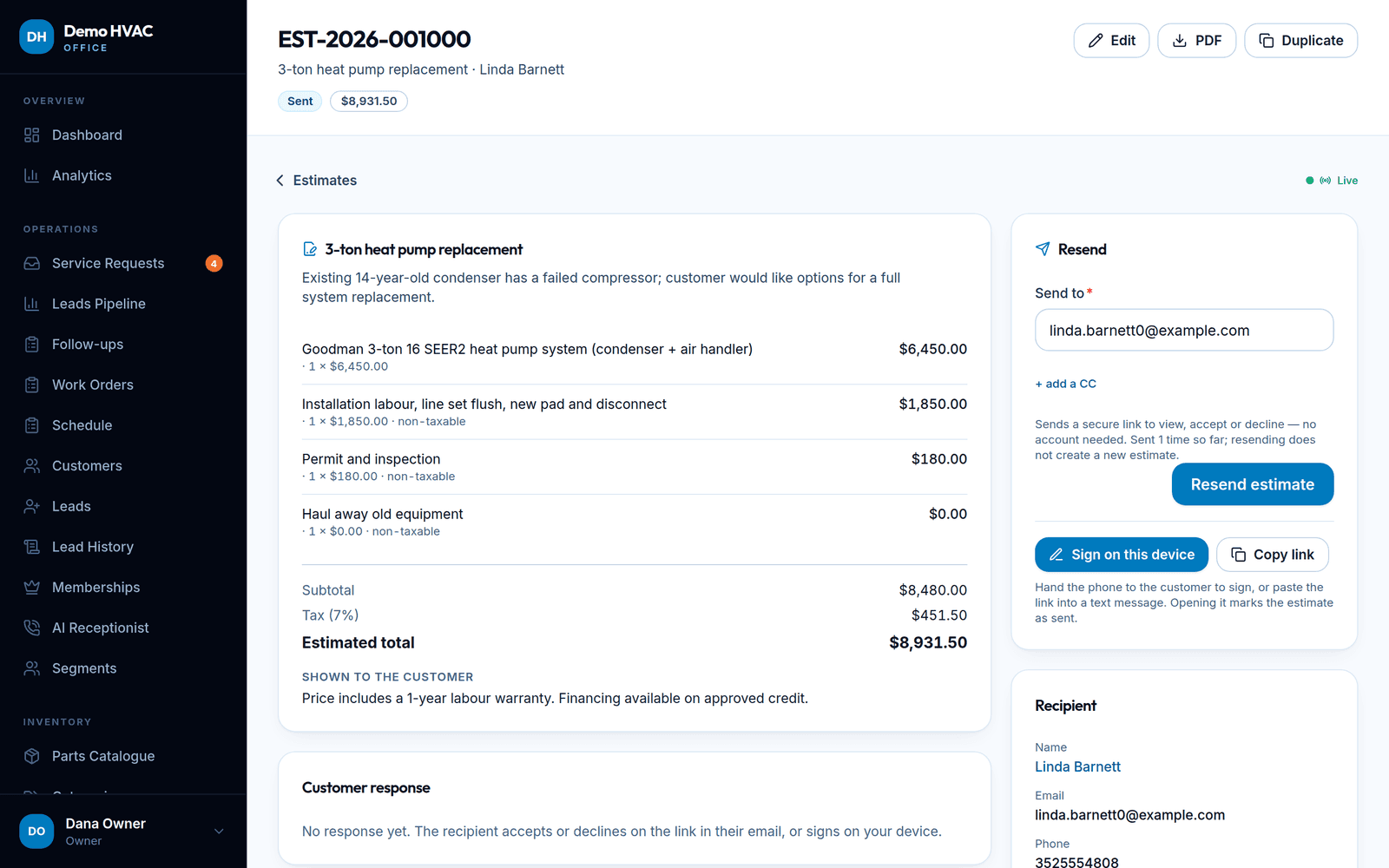
Step 9 of 13
Invoice, payment, receipt
Outstanding, overdue and collected at a glance. Record a payment and a numbered receipt is emailed; overdue invoices are flagged on a schedule.
Estimates, invoices & payments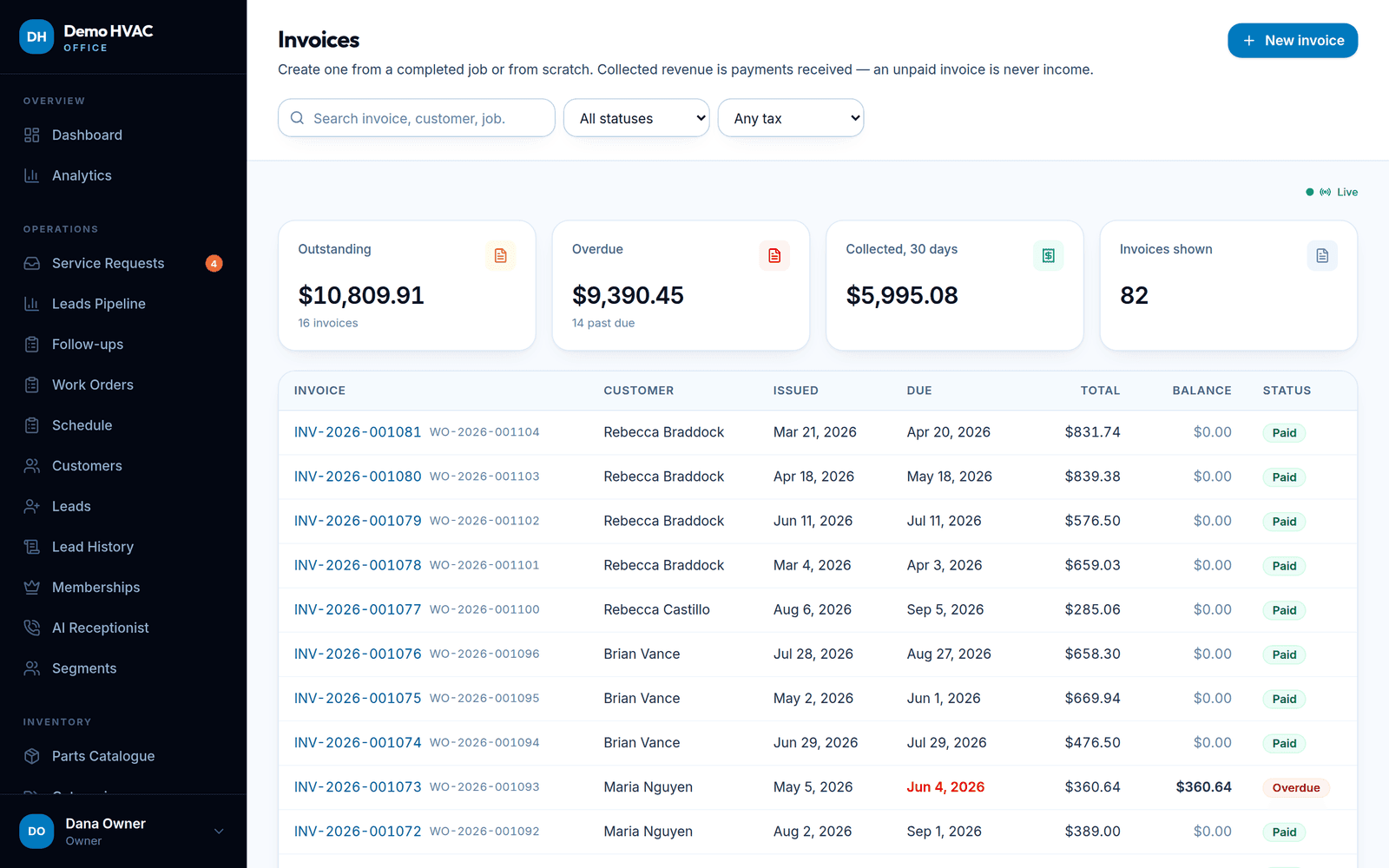
Step 10 of 13
Money on the table, ranked
Overdue invoices, unsold estimates, unbooked calls, maintenance due and renewals with a priority score and the facts behind it. Done, snooze or dismiss.
Reporting & opportunities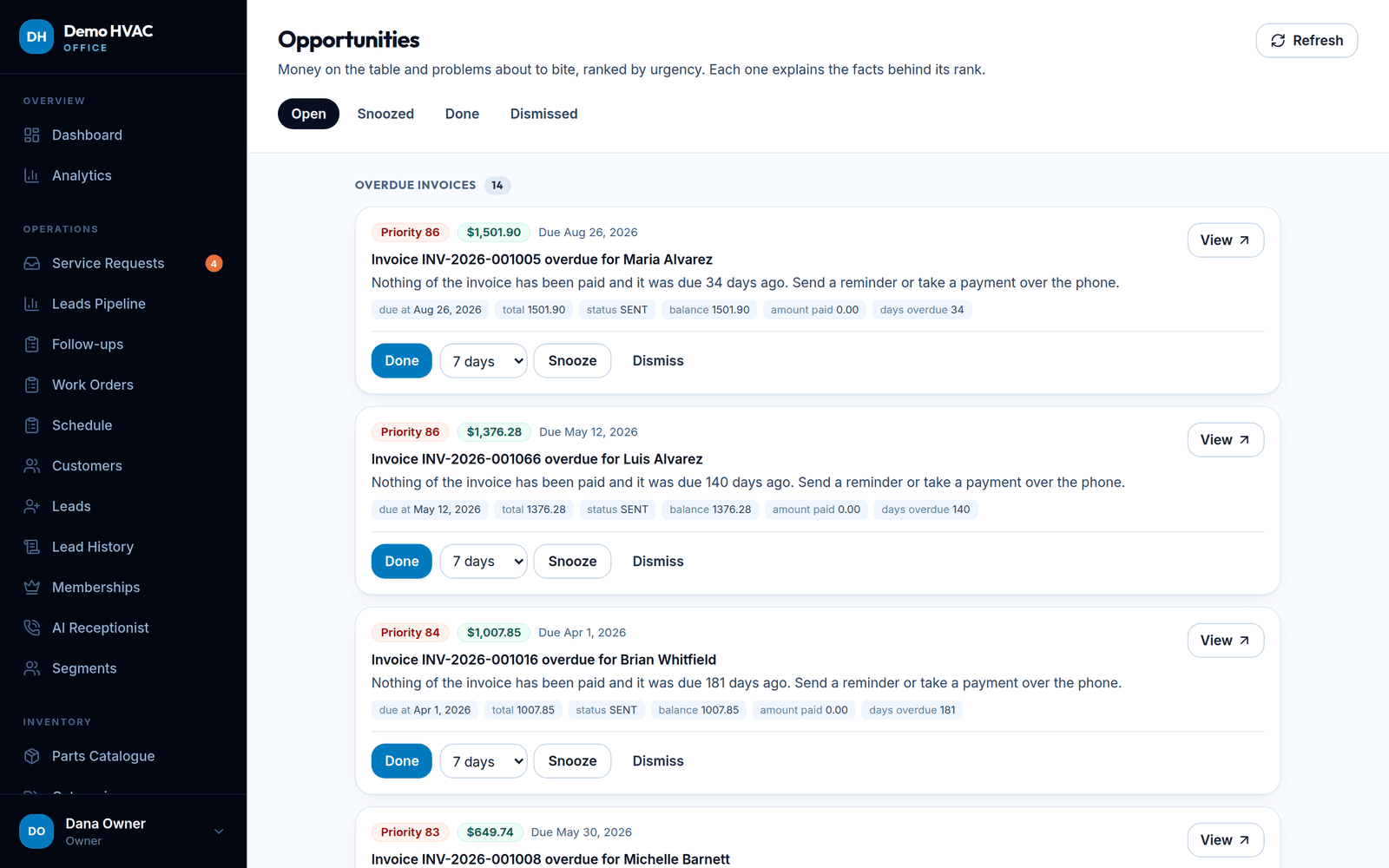
Step 11 of 13
The dashboard tells you what matters today
Revenue this month, jobs today, technicians working, requests waiting and the attention list — updated live.
Reporting & opportunities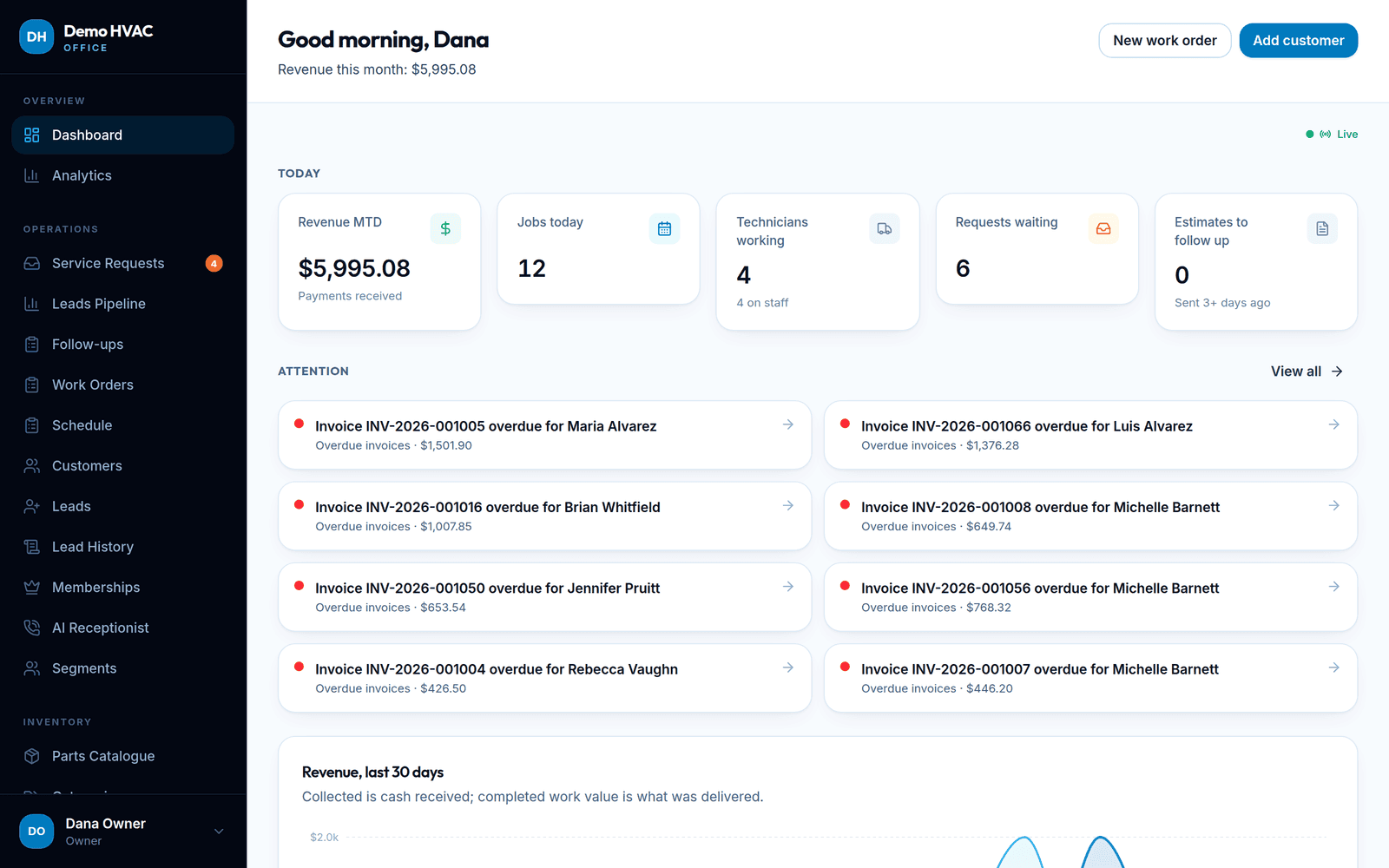
Step 12 of 13
Your website, edited in the same place
Pick Classic, Bold or Local, publish, then reorder and rewrite sections, add promotions and location pages under Settings → Website. Requests from the site go straight to the inbox.
Website & SEO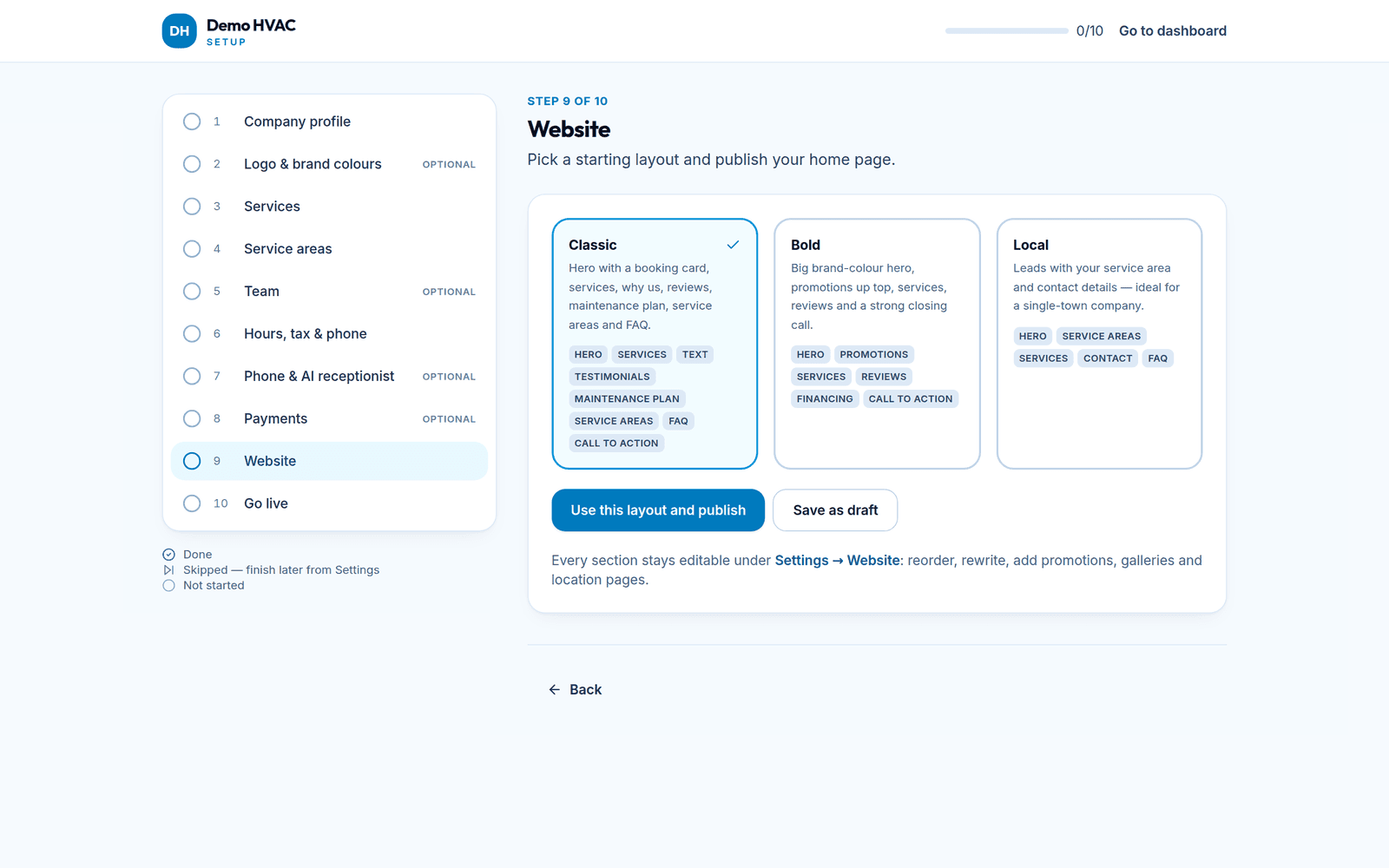
Step 13 of 13
Behind it all: the platform console
The operator manages plans, add-ons, system health and audit here. Company customer data is never shown in the console; support access to a company requires a reason and is logged.
Security & data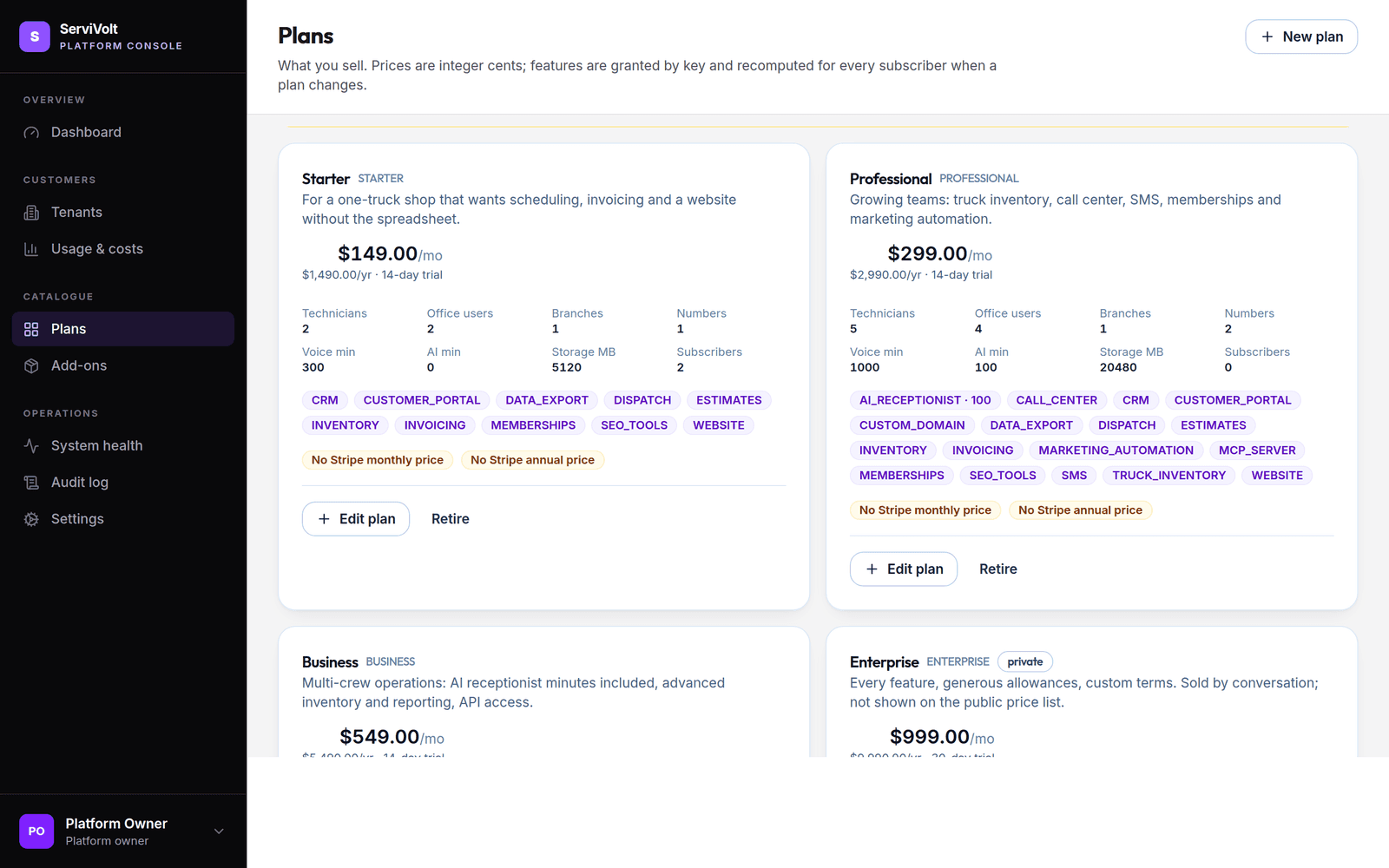
Try it
Now with your company name on it
Create your company, run the setup wizard and book a job. 14-day free trial, no card to start, and your data stays yours — export it any time.
Prefer to see it live?
Tell us about your company and we will walk you through it on a call.